

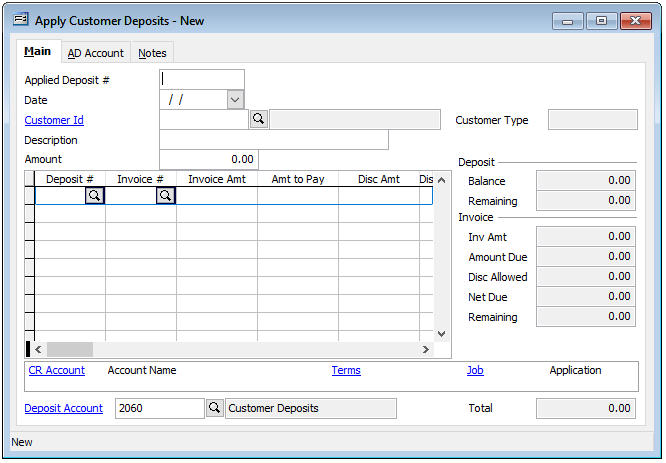
The second step in the Customer Deposit process is to “Apply Customer Deposits.” The Apply Customer Deposits form permits one or more customer deposits to be selected and applied to invoices that show a balance due.
Reminder: While a customer deposit may be something that typically occurs before the start of a job, it is important to know that the Customer Deposit process in BIS is also used when receiving a customer payment that is over the amount of what has been currently billed. The reason for this is that the amount over what has been billed is held in the deposit account and the amount can either be applied to future billings or refunded to the customer, if needed.
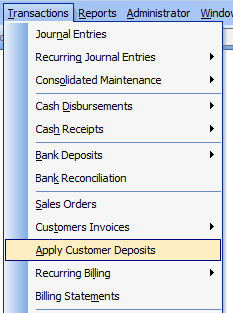
To access the form, go to Transactions, Apply Customer Deposits in the menu or select the hyperlink in the white area of the My Desktop Accounts Receivable folder.
Creating an Apply Customer Deposit:
- Enter an Applied Deposit # and the Date. Select or enter the Customer ID, a Description (if desired) and the Amount.
- In the Deposit # field, enter or select the first deposit # to be applied, advancing will populate the Invoice # of the oldest outstanding invoice # by default along with the Invoice’s amount and the outstanding balance in the Amount to Pay field. The Invoice # field may be cleared, and a different invoice may be selected which will populate the Invoice Amount and Amount to pay fields with the corresponding invoice information. The Amount to Pay field may be changed if a different amount is to be paid.
- Repeat step 2 if additional deposits are to be applied or the same Deposit # is to be applied to another invoice for this customer.
- Note that the Deposit Account and Discount Account may be changed on the AD Account tab, if required. And notes may be added to the Notes tab, if needed.
- Prior to posting, the Amount field must equal the Total field in the lower right in order to complete the transaction. Clicking the “Save” icon or use the “Ctrl + S” quick key stroke to save the transaction.
Field descriptions:
Applied Deposit Number
Records a number that will be used to identify this record. This is not the number of the deposit to be applied, which is entered on each detail line item. This permits one or more deposits to be applied to multiple invoices during one transaction.
Date
Records the date that this deposit is being applied. This date may be typed or entered using the Calendar tool.
Customer ID
Records the customer identification number related to this record. The customer ID may be entered manually or by using the Find tool but must be on file in the Customers master record. Once entered, the customer’s name and type will be displayed.
Description
Records a general description for this transaction. This is an alphanumeric field limited to 30 characters.
Amount
Records the amount of the deposit to be applied to invoices at this time.
Customer Type
Displays the type established in the Customers master record for this customer.
Deposit Column
Records the number of the customer deposit that will be applied to an invoice. This number was entered in the line-item distribution of the Customer Deposits transaction when the deposit was received. This may be entered manually or by using the Find tool.
Invoice Column
Records the number of the invoice that will be credited by the deposit selected. This may be typed or entered using the Find tool. Either sales invoices or contract invoices may be chosen.
Invoice Amount Column
Displays the total amount of the invoice selected.
Amount to Pay Column
Records the amount from the deposit selected that will be applied to this invoice.
Discount Amount Column
Displays the amount of the discount allowed for the customer invoice selected if payment is made by the discount date.
Description Column
Records a brief description for the transaction line item. Entering a concise description can save time otherwise spent looking for the original document to determine why an entry was made. This is an alphanumeric field limited to 30 characters. To record an extended description for this item, click the button to open a Notes box, where unlimited information related to this line item may be stored.
Report Code Column
Used to record a report code related to the line item, which can be used for creating customized reports. Report codes are maintained in the Report Codes file. This code may be typed or entered using the Find tool.
Job Column
If the account number selected for the line item has been assigned a Job Cost type, the button in this column will open the Job Cost screen, where the item can be posted to a specific job, change order, and cost code.
Deposit Balance
Displays the balance of the deposit selected.
Deposit Remaining
Displays the amount of the deposit remaining after being applied to the invoice(s) selected.
Invoice Discount Due
Displays the date by which the invoice selected must be paid by the customer in order to receive the discount.
Invoice Due Date
Displays the date by which the invoice selected must be paid by the customer before it is considered past due.
Invoice Discount Allowed
Displays the amount of the discount allowed if the invoice is paid by the customer before the discount date.
Invoice Amount Due
Displays the total amount due for the invoice selected, less any discounts allowed.
Invoice Remaining
Displays the amount remaining for the invoice selected, which is the amount due less any payments made.
Posting and Invoice Summary
This section displays a summary of information related to the posting of this invoice. The general ledger account number and name to which this payment will be posted are displayed. Also displayed are the payment terms for this invoice, and the related job and application for payment numbers, if applicable.
Deposit Account
Displays the deposit account to be used for posting this payment. The default deposit account is set up in the System Wide Parameters, but can be changed on the AD Account tab.
Account Name
Displays the account name associated with the account number selected.
Total
Displays the total amount of all line items entered. In order to save the record, this amount must match the amount to be applied entered above.