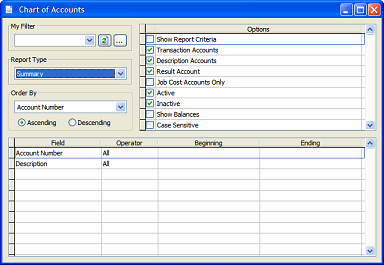

The My Query option enables the user to save multiple sets of filter conditions. The initial use of My Query shows no saved Queries. If there are existing named queries available, they can be seen using the drop-down tool.
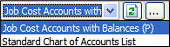
As with other system reports, each named query selection can be further refined with the other settings.
Refresh Button
 If a query has been saved, and new changes are made to the query settings, clicking on the Refresh button will remove those unsaved changes.
Details Button
 A query can be saved by clicking on the Details button. If there are no pre-existing queries, two buttons are available, Save As and Close.
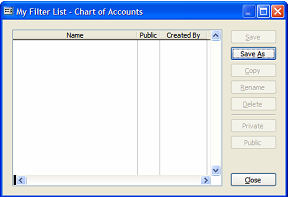
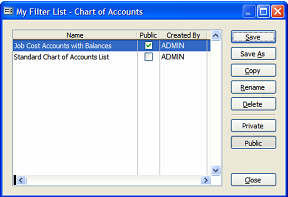
Save
The Save button will save the current settings, but will provide a dialog box asking, “Do you want to overwrite this query?” Click on Yes to save the current settings under the selected name, or “No” to not save them under the current name.
The Save As button opens the Save As Query sub-form.
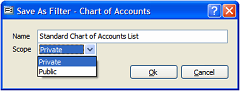
Name
Use this field to assign a name to the saved query.
Scope
The Scope option allows the user to specify whether the saved query will be kept for private use or made available to all users with access rights to this information.
OK
Click on the OK button to accept the name and scope selections.
Cancel
Click on the Cancel button to close the form without saving.
Copy
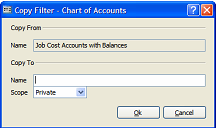
The copy button will copy the current saved query to a new name, and allow changing its scope setting. The newly named query can then be edited and re-saved.
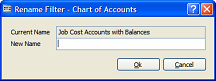
The Rename button opens the Rename Query form that allows the query to be saved with a new name.
Delete
The Delete button will delete the selected named query. If the query is a public query, the following dialog box question will appear, “This is a public query. Are you sure that you want to delete this query?” If the selected query is not a public query, the system simply asks for a confirmation of the action.
Private
If the query is marked as Private, this button will be grayed out. The user has the option of changing the scope of the query to Public by using the next button.
Public
If the query is marked as Public, this button will be grayed out. The user has the option of changing the scope of the query to Private by using the preceding button.
Close
This button closes the My Query List.
Clear Button
 The clear button is located on the tool bar normally at the top of the screen. This button applies only to the report queries. BIS® reports query settings are remembered by user from one session to the next. Thus, if a saved query was last used, the query screen for the same report would open with it pre-selected. The clear button resets the query screen to the system default.